The user guide
Every screen in the athlete app, what it shows you, and what happens when you tap. Ten minutes to read; keep it for the bits you forget.
Contents
01Getting in
Orbit is invite-only. Your first visit starts from an email; every visit after that starts at app.orbitathletics.com.
The invite
- Look for an email from no-reply@orbitathletics.com. The first one often lands in Spam or Junk, so check there and mark it "not spam" so the rest arrive.
- Tap the link. It signs you in and asks you to choose a password (at least 8 characters). Do this on the phone you will use most.
- You land on setup, which is the next section.
Every visit after that
Go to app.orbitathletics.com and sign in with your email and password, or tap Continue with Google if your Google account uses the same email address you were invited with.
Forgot the password? Type your email in the box and tap Forgot your password?. A reset link arrives the same way the invite did.
Put it on your home screen
Orbit is a web app, so there is nothing to install, but it is built for a phone and works best as an icon.
- iPhone · open it in Safari, tap the Share button, then Add to Home Screen.
- Android · open it in Chrome, tap the three-dot menu, then Add to Home screen (or Install app).
You stay signed in on that device until you tap Sign out.
02Setting up, once
Two screens, shown across the top: Your plan Ready. You answer a page of questions, Orbit builds a training block, you look at it and start. If you close the app part-way through, signing back in returns you where you left off.
Nothing else is required. Your watch and your calendar are both optional, both offered from inside the app once you have a plan, and both explained below.
Step 1 · Build your plan
These are the things no watch can know: what you are training for, how your last few weeks have gone, which days you can run, and how hard you want this block to be. Most answers are a tap.
How hard should this block be? One choice instead of twelve settings:
- Maintain — hold your weekly mileage where it is. Staying fit, not building.
- Progress — build steadily, at most 10% a week. What Orbit recommends, and the default.
- Challenge — push the volume, above the usual 10% a week. More risk, faster gain.
Each one sets six of the rules the Planner builds inside — the weekly ramp, the single-run step, how much running is easy, the gap between hard days, and the down week. You can see every number, and change any of them one at a time, under More › Running guidance; doing that makes your choice Custom, which is what the screen will then say.
Step 2 · Look at it, then start
Orbit shows the block it built: how many weeks, the weekly mileage, the long runs, the shape of it, and which of your rules it was checked against. Press Looks right — start and you are in the app. Change my answers goes back.
If the block goes past one of your own rules, the review says which one and by how much, and asks: Continue anyway or Build it again. A rule you set is advice, not a wall; the point of it is that you are told.
Your watch · optional, and the best thing you can add
Once you are inside, a card under For you on the Now tab offers to connect your watch. It is worth doing: Orbit then imports your sleep, HRV, weekly mileage and every completed run, and the plan follows what you actually did instead of what you typed. Until then Orbit reads only what you enter by hand, which works — it just knows less.
Orbit reads your runs, sleep and heart-rate data through intervals.icu, a free service that talks to Garmin, COROS, Polar, Suunto, Wahoo and others. You connect it once, with the Authorise with intervals.icu button; after that everything arrives on its own, within ten minutes of a run ending.
If you already have an intervals.icu account with your watch connected to it, that button is the whole setup — skip to step 4. If you do not, it is four steps and about five or six minutes, once, and you can do it whenever you like. The card can be dismissed, and connecting stays available under More › Watch.
First pick your watch on the card: Garmin, COROS, Apple Watch or Something else. The Watch sheet numbers the steps for the watch you pick, with Authorise with intervals.icu under them. The steps below are for Garmin, with the COROS difference noted. An Apple Watch starts on the iPhone instead: install the free Intervals.icu Companion app first, sign in to intervals.icu in it (or make an account there), and when Apple's Health screen appears tap Select All (or at least Workouts, Heart Rate, Resting Heart Rate, Heart Rate Variability and Sleep) and Allow; then come back and authorise, as in step 4. The same steps are inside the app under Step-by-step guide with pictures, for every watch.
Create a free intervals.icu account
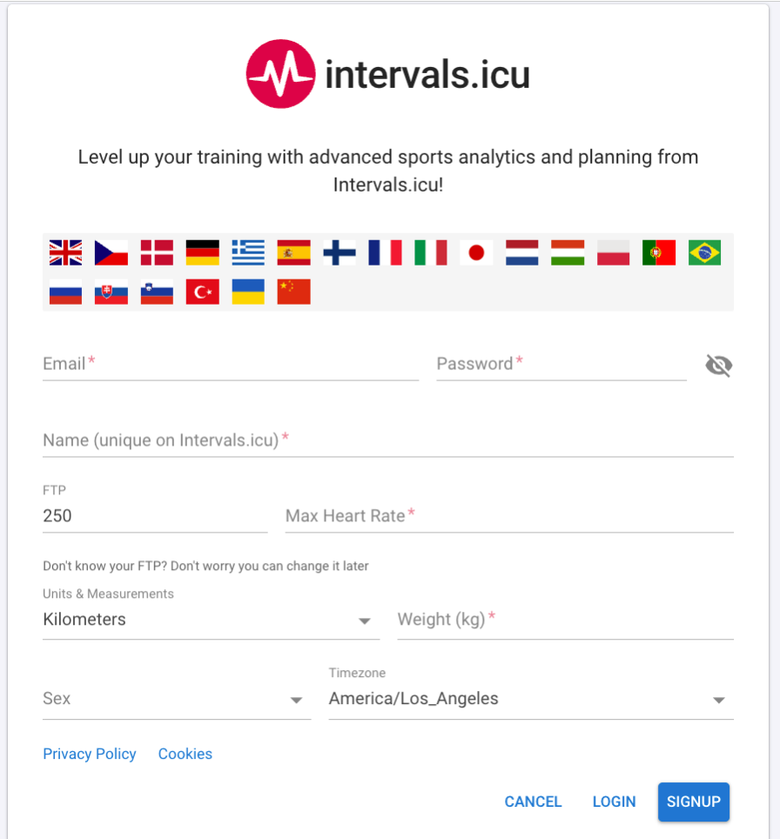
Open intervals.icu/signup. It asks for an email, a password, a name (it has to be unique on intervals.icu), your max heart rate and your weight. Leave FTP as it is, that is for cyclists. Set Units to Miles so it matches Orbit, check the timezone, and press SIGNUP.
Open Settings and connect your watch
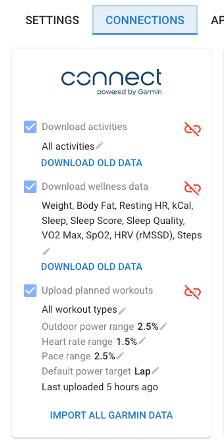
In the menu on the left (the three lines at the top on a phone), tap Settings, the gear, then the CONNECTIONS tab. The first card is Garmin Connect. Tick Download activities, Download wellness data and Upload planned workouts. The first time, a Garmin page opens where you sign in with the login you use in the Garmin Connect app and allow access.
Upload planned workouts is what lets Orbit put a session on your watch. Without it, the plan still works, but your watch will not know about it.
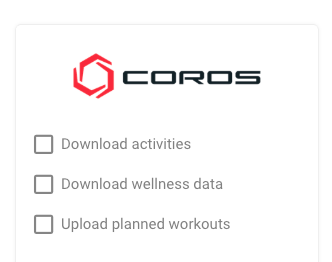
COROS: find the COROS card on the same tab and tick the same three boxes; the sign-in page is COROS's instead of Garmin's.
Download your history
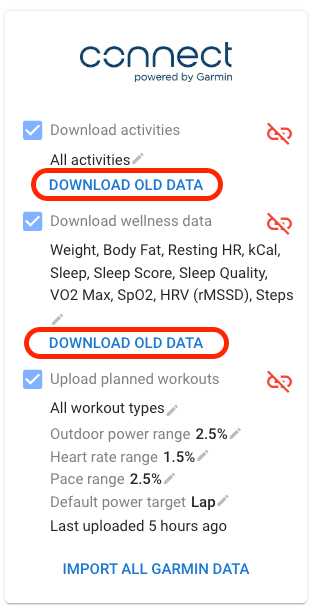
On that same Garmin card, press DOWNLOAD OLD DATA under activities, and again under wellness data. Each reaches back about a year. Give it a few minutes to finish. You do not need to export a CSV of anything.
COROS: if the card shows an import link, press it; if not, COROS sends the history across on its own once connected.
Come back to Orbit and press Authorise
On the watch card, or under More › Watch, press Authorise with intervals.icu. intervals.icu asks you to sign in if you are not already, then shows what Orbit is asking to use, each with its own tick box: your completed runs, your sleep, HRV and resting heart rate, the calendar that carries workouts to your watch, and your profile and paces.
Leave them all ticked and press Authorise. The calendar one is what puts a session on your watch: without it the plan still works, but nothing Orbit plans reaches the watch. You land back in Orbit, connected, and your runs and sleep start arriving within minutes.
There is nothing to copy and nothing to keep safe. Orbit stores the permission encrypted on the server, and no screen in the app can read it back.
Once connected, More › Watch shows what you allowed Orbit to see. Reconnect replaces the connection in place — if the sync is failing, or to point Orbit at a different intervals.icu account — and the sync never stops while it does. Disconnect stops the sync and withdraws Orbit's permission at intervals.icu. Your training stays where it is either way, on both sides.
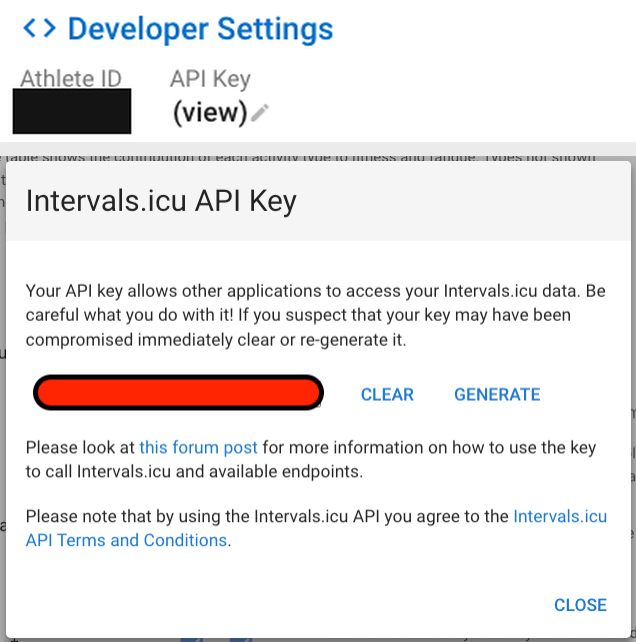
Fallback · an API key instead of the button. The older way still works, and nobody who connected with a key has to change. On the watch card, tap Paste an API key instead. On intervals.icu, open Settings and find Developer Settings; next to API Key, tap (view) (press GENERATE if the box is empty) and copy the whole key. Paste it into Orbit and press Connect with the key. Orbit checks the key against intervals.icu before saving it, stores it encrypted, and never shows it again. Treat the key like a password: it lets an app read your training, so never post it or send it in a message.
Your calendar · optional
The second card on the Now tab connects Google Calendar. It lets Orbit see when you are busy and plan around it, and puts each training session on a calendar of its own that you can switch off. Tap Connect and allow the narrow set of permissions it asks for, or leave it — it is also under More › Google Calendar whenever you want it.
The questions, in full
What the questionnaire asks, and why. Most answers are a tap. Anything you can skip is marked · optional on the screen itself, and the line under Build my plan names whatever is still missing as you go — you never have to press it to find out.
- Are you 18 or older?
- Needed. Orbit is for adults.
- Already following a plan?
- Optional. Upload a PDF, spreadsheet or screenshot of it and Orbit builds from it rather than over it, telling you where it changed something. Skip if you are starting fresh.
- What are you training for?
- A running race, HYROX, lifting only, or just get fitter. Pick everything that applies. A race asks for its name, date and your goal.
- Where are you as a runner?
- Just starting, run with no plan, trained before, race regularly.
- The last few weeks
- Weekly miles and your longest recent run, plus an optional recent race or time trial. With a watch already connected, Pull from my watch fills the two numbers from the last four weeks on intervals.icu. Without one, type them and build the plan — connecting is four steps and five or six minutes (one button if you already use intervals.icu), and it is worth doing after you have a plan, not before.
- Which days are you available to train?
- Which days are possible at all — not how often you want to train. Being free seven days and wanting to run three is normal: Orbit decides how many of them your plan needs, and the rest are rest days. To pin the number yourself, set run days under More › Running guidance.
- Best day for your long run?
- Only the days you said you were available are offered.
- Strength work?
- Yes, no, or tell me if I need it. With a HYROX goal it is always yes: half that race is stations.
- Anything hurting?
- If yes: the body part (up to three), which side, the name anyone has given it — runner’s knee, IT band syndrome — and how long it has been going on. The diagnosis is optional and a guess in your own words is still useful. Each part becomes a slider in your daily check, and the block carries named rehab work for it in the strength sessions it already has, with the reasoning in the rationale.
- Ignore any recent training?
- An injury, an illness, three weeks off. This is the question most likely to stop the first plan being wrong.
- Fuel, units, shoes
- What you use on long runs, miles or kilometres, and the shoes you run in with their miles so Orbit can tell you when they are done.
Last, folded away, are the shoes you run in — optional. What Orbit shows you, the nightly read, and the rules your plan is built inside (with the research behind each one) are not on this screen; they are under More once you are in.
Tap Build my plan. It takes about a minute.
The review
You see the shape of the whole block: how many weeks, how the weekly mileage climbs to its peak, where the long run ends up, how many running and strength days each week has. Under it, Checked against your rules lists each rule the block was tested against and whether it passed. Week one starts where you are: no more miles than you said you run a week, and no run longer than the longest you said you have run; the block grows from week two. If you asked for a race, the course profile is here too.
Then a bar chart of the weeks, left to right from week one to race week.
This is a shape, not a contract. Nothing is on your calendar or your watch yet. Each week gets written in Plan, against how the last one actually went — with two exceptions that save you a blank week. If the block's first week has already begun when you press start, Orbit writes the rest of it straight away, from today, and a card on Now says so while it does. And a week you have not built by Sunday is built for you (see Plan).
Tap Looks right — start to begin, or Change my answers to go back.
03Finding your way around
Four tabs along the bottom: Now, Plan, Log and More. Tap one, or swipe sideways anywhere on the page. The bar shrinks to the tab you are on while you scroll down and comes back when you scroll up. Beside it, the round button opens Ask Orbit. At the top, today's date and your week of the block; the Orbit mark always takes you back to Now, and the readiness score beside it opens Body.
Sheets. Most things you tap open a panel that slides up from the bottom: a run, a day, a number, a week. Tap Close at the top or the dimmed area behind it to go back. Only one sheet is open at a time.
Chips. Small pills like Easy Steady Strong are single-tap answers. The green one is the one you picked.
Green and orange. Green marks what is done or good; orange marks what is planned, pending, or wants attention.
Every number is tappable. If a figure is on screen, tapping it opens where it came from.
04Now
Today only, in six parts: how you are this morning, what is on today, anything that wants a decision, the read of your last session, the week in one line, and the days to your race. The week, what is coming and your trips are on the Plan tab.
Readiness
The ring is today's readiness score, 0 to 100, with a word under it: Primed to train (72 and up), Carrying fatigue (50 to 71), Under real stress (30 to 49) or Deep fatigue. The same word is in the score at the top of every screen and on Body. It counts up to the score when you open Now. It is computed from your own last 28 days, not a population average, and needs about two weeks of mornings before it settles. Under it, three numbers from the same morning: HRV (with how far it sits from your 28-day baseline), resting heart rate and sleep.
Tap the ring, any of the three, or the score at the top of any screen for Body (below).
Today
One card for each session today, saying what kind it is and, once it is on your watch, On your watch. Under the name, the distance, the pace to hold and roughly how long it takes, and for a structured run a bar of its shape: warm-up, the work, cool-down. Log it opens the Log on that session; See the steps opens the steps (or a lift's exercises) in the card. The ••• button has Move or change (Ask Orbit's Change plan on this week, the session already named), View the plan (the day), Share with a friend and Log another activity. Once it is done the card says Done and becomes the read of that session: one sentence on how it went, then its own numbers. A run your watch recorded takes the headline of Orbit's note on it (until the note is written, just the numbers): its distance, average pace and average heart rate, and its pace by mile, where faster is higher and the fastest and slowest miles are marked. A lift compares the top set and reps of its first weighted exercise with the last time you did it (Back squat 5 lb up on last week, same reps), with its sets, reps and pounds lifted; once Orbit's note on the lift is written, its headline leads and the comparison sits under the numbers. Another sport says its minutes against the minutes planned, and a run you logged by hand its pace against the plan's, or its miles. When there is nothing worth saying, just the numbers. See the run opens the run. On a rest day it says so.
A day with more than one session is one row of these cards that you swipe sideways, one card on screen with the next peeking at the edge, so the read stays right below it. What is still to do comes first, in the day's order; what is done, and anything your watch recorded that was not planned, comes last. The heading says how many there are and which one you are on, such as 2 of 3. Each card keeps its own buttons. Swiping the row moves the cards, not the tab.
For you · only when something wants a decision
The cards that ask you something, one at a time in a row you swipe sideways, with the number of them beside the heading. Each keeps its own buttons, and goes away when you answer it:
Recovery is down, on a hard morning, first. Left behind: a session planned yesterday or earlier that was never logged, with Skip it, Tomorrow or Do it today (a lift says Add to today); moving a run also moves it on your watch and your calendar. Shared with you: a workout another athlete sent, to Join (a copy on your plan, calendar and watch) or decline. Build next week on Sundays, and Next week is ready once the Sunday build has written it. A note from your coach, a trip your calendar or journal suggests, the watch and calendar offers, and the guide.
A shared workout's pace comes across; their heart rate does not. The paces are the workout — a tempo at 7:33 is still a tempo at 7:33 on your watch. Your friend's heart-rate numbers are set by their body, not yours, so none of them is on your copy. Where the workout uses a heart-rate zone, your watch reads it against your own zones.
On Sunday, if next week is not written yet, Build it now opens Ask Orbit's Change plan on that week and asks what to plan around before it drafts anything. If you leave it, Orbit builds it for you (see the Sunday build), and the card becomes Next week is ready with Looks good and Adjust it. Switch it off under More › What Orbit shows you › Sunday build.
Yesterday · the read
Overnight, Orbit writes a short note on your last run or lift. Here is its headline, with the run's distance, average pace and average heart rate and its pace mile by mile (faster is higher). A note on a session you did today is on that session's card instead, so it is never shown twice. Tap it for the run itself and the whole read. Switch the read off under More › What Orbit shows you › Nightly read if you would rather not have it.
This week
One line: the miles done against the miles planned, what is next, and a small bar for each day. Next is what is still planned on the next day that has anything: a session you skipped is never next. Tap it for the Plan, where the week is laid out day by day, with the two weeks after it under Coming up.
The race
The days to your race and its date. Tap it for the course: where, when, the climb, the usual weather and what it asks of your training, with the pages it came from. It is not shown when there is no race on your plan.
Look it up again, on that sheet, reads the race's own pages afresh, for when the course or the notes have changed. Orbit asks once first (Keep these leaves everything as it is), because what it finds replaces the notes on file; it takes about a minute and the old notes stay until the new ones land. If it cannot finish, it says so and nothing changes. Only you see this button: a coach reads the course but cannot look it up again.
Body
One sheet for every recovery and load number. At the top, the score and its word (the same word as under the ring and at the top of the screen). Then six tiles, each a number and one line: HRV (against your own 28-day baseline), resting heart rate (against your usual), sleep (and the watch's sleep score), form, fitness and fatigue (each with its change over 7 days). Tap a tile for its history; ‹ Body at the top brings you back.
Under the tiles: what the score is made of (35% HRV, 25% resting heart rate, 25% sleep, 15% training load, each with its own part of today's score; The full breakdown adds the sentence on what is driving it and your bands), your readiness over 14 days, your heart-rate zones over the last 4 weeks (easy, moderate, hard; Every week for each week), the Fitness and fatigue chart, and Ask about your body, which opens Ask Orbit on your body with a question already started. Each bar is a score out of 100, then weighted: HRV and resting heart rate against your 28-day baseline, sleep by its hours, load by your form.
The tiles are the numbers from the morning the score was made; when that is not today, the heading says which morning. If last night's HRV has not come over from the watch yet, a note under the tiles says so. With Recovery off under More › What Orbit shows you, Body says so and shows only what you still track, and you open it from a Body row at the foot of Now; with Load off, there are no load tiles or chart. There is more in Reading the numbers.
05Log
What you did. Two views at the top: Today and History. The Log always opens on Today. What you log here is what the nightly read, the Planner and the readiness score work from.
A coach who can edit your plan can log here for you too: tick a lift's sets, type a run you did without a watch, log another activity, and Save, all on your rows, never theirs. Last night and End of day are your journal, so they can log those only if you also share the journal with them (More › Coaches, Journal). Your own account stays yours: they do not see Watch, Notifications or Rebuild plan, cannot look your race up again, and cannot add attachments for you. A coach who can only read sees the Log as it is, with nothing to tap.
Today
One day per screen. At the top, the session's name and the day (Monday, Oct 5 · today), with ‹ and › either side to move a day at a time; if the day has two or more sessions, chips under it switch between them. Then the day in three steps that fold like a checklist: Last night, the session and End of day.
Tap a step's name to open or fold it. A folded step says in one line what it holds (Travel day · Magnesium · 0 drinks) or what it asks. A green tick means the step is done: something is filled in or saved for it. The Log opens on the first step not done, or on the session when you came from Log it or a session's chip, or when your watch's sets are waiting for you to confirm them. Done · next at the foot of a step folds it and opens the next one.
Recovery is down · only on a hard morning
If the morning's numbers are well below your normal, a banner at the top of Today says so and gives one of two instructions: do the session but hold the effort down, or move it and keep only the movement. It is advice, not a lock.
Last night
The first step, because it is fastest to answer before you forget: three flags (travel day, ate within two hours of bed, caffeine after 2pm), which supplements you took, and how many drinks. It is written to yesterday's row, since last night belongs to yesterday. The drinks counter reads 0 until you change it; once the night is over, Done · next on this step counts that 0 as your answer.
This step only shows if Morning journal is on in More › What Orbit shows you.
The session · the run, the lift or the session
The second step, named for what is planned. A session's note comes first, then its warm-up with a tick on each line (they are for you; nothing is scored).
A run comes from your watch; you do not type distance or pace (no watch? see below). The step shows the workout's shape (warm-up, the work, cool-down, each stretch named and coloured by the same rule), what was planned, and View the full run › once the watch has sent it across. What you add is the part the watch cannot record:
- Ground · road, trail or hilly: trail and hilly put the watch on heart rate and the read on effort.
- Carrying · nothing, handheld, belt, vest.
- Fluid carried · none to 1.5 L+.
- Fuel taken · plus and minus on each of your products; the carb total updates as you go.
- Stomach · fine, slight, rough, stopped.
- Effort · easy to max, how it felt, not the pace.
- How it went · terrain, weather, anything the watch will not tell.
A run's step is done once it has a note or fuel, or the watch has recorded the run, or you have logged it by hand.
No watch? Log a run by hand. Without a watch connected, a planned run from today or earlier opens with three boxes under What you ran: Distance in miles (needed), Time as mm:ss or h:mm:ss (optional) and Avg heart rate (optional). The pace is worked out as you type. Tap Save and the run is done: it counts on Now's week, the Plan, the block's miles and the calendar like any run, and says logged by hand wherever a watch would be named. A number that cannot be right (no distance, more than 100 miles, a time under a minute) is pointed out beside its box, and nothing is saved until it is fixed; the Log stays on that run until then. You can change the numbers later and save again, or take the run off with Remove this run, which asks first; the session goes back to planned, and a past one reads Missed again. If a watch you connect later also recorded that run, it is not counted twice: the run you logged by hand is the one counted.
A lift is each exercise with its prescription (sets × reps, and a cue if there is one) and, in green, what you did last time. Under it, one row per set, with lb and reps named over the rows:
- Load and reps, each with − and + or type straight in. A set opens at the prescription, and once you change one the sets after it follow. Bodyweight and band exercises say so instead of a load.
- Timed holds get a ⏱ Start stopwatch; tap again to stop and it fills in the seconds.
- The ✓ at the end marks the set done. When every set is ticked the exercise's tag turns to done.
- Single-side exercises have a line underneath to flag that one side felt different from the other.
- A notes box per exercise.
If your watch recorded the lift, its sets arrive filled in under From your watch; change anything that is off, then tap Confirm. A HYROX session works the same way, station by station, each with its own stopwatch, and totals the time as you go. Another sport says what your watch recorded in the step's line, with the way to it, or offers Log it by hand. A session whose day has passed with nothing recorded says Missed.
Ask about this, under a lift, opens Ask Orbit with that session's numbers already in front of it. On a rest day there is no session step: the day says so.
Sharing a session
Inside the session step of a planned run, lift or HYROX session that has not passed yet, Share this run with a friend (or lift, or session) lists the other athletes on Orbit who accept shares. Add a note ("6am at the park?") and send. They get it as a card on their Now screen. Your paces go as you wrote them; your heart-rate numbers stay with you, and any heart-rate zone in it is read against theirs.
End of day
The third step: how the body is, on a four-step scale: for each thing you told Orbit hurts, Quiet Noticeable Limiting Stop; for the legs overall, Fresh Mild Sore Heavy. A tick for Felt run down, and a notes box. These feed the readiness score and the Planner's recovery check.
This week
Under the steps, the week, a row a day, every session on its day (a busy day's chips wrap onto a second line, the ones still to do first). A chip moves the Log to that day and session, so you can log the whole week from one place. A rest day reads what the plan calls it, such as Rest - travel. Log another activity adds something your watch missed.
Saving
A glass bar floats above the tabs: Unsaved · held on this device or All saved, how many of the day's steps are done with a thin bar, and Save. Until you tap it, what you typed is safe on your phone even without signal (on a coach's phone, kept apart for each athlete they log for); if the connection drops while you save, it stays held, and the moment the phone is back online it saves by itself. While it saves, the bar says Saving… and the day stays where it was. On a day with two sessions, each keeps what you typed on it: if one could not save and you moved to the other, its button above the step says · unsaved until you open it and save it. A coach who can only read sees Read only there instead, with nothing to tap.
History
Everything you have done, a chip each: Runs Lifts Other Shoes Supplements. The chips scroll sideways.
- Runs · the last seven days, each with distance, pace, heart rate and load (a run logged by hand says so, with what you typed), and Older runs: every week of the block, each opening its runs. Tap a run for the full run: the read, if the nightly note has written about it; distance, average pace, average heart rate, TSS, and under them the moving time, the climb and the watch's power; mile splits (a structured run's laps); heart rate through the run, with your work laps shaded (put a finger on the line to read it at that point); the route; lap by lap, as your watch recorded it (taller is faster, width is time on the clock, orange is at or inside your threshold pace); heart-rate zones; and a link to open that day in the Log.
- Lifts · every exercise, session by session, with what you lifted last; tap one to open the day it was last done.
- Other · time in the water, then every other sport of the last five weeks, from the watch or logged by hand, and Log another activity.
- Shoes · each pair and its miles against the mark where it should retire, then Add shoes: a name and the miles already on them (0 to 5000), and Add shoes. Orbit counts on from there.
- Supplements · how often you took each one over the last 14 days, out of the days it was due, then Add a supplement: a name, how much if you like (1000 IU), and which mornings, every morning or the days you pick. Last night then has a tick for it on the mornings after those days.
A list with nothing in it yet says what fills it, and one that could not be read says so (pull down to read it again). Anything the add rows cannot take (no name, miles that are not a number, no morning picked) is said beside the box, and nothing is saved until it is right. You and a coach who can edit can add; a coach who can only read sees the lists alone.
06Plan
The week is the unit of planning. The header names the week, ‹ Week 7 · Build ›, over its dates and its mileage target; ‹ and › move a week either way. Under it, three views: Week Block Calendar. Tap one (or, with a keyboard, use the arrow keys) to switch. On the Calendar the header is the month's instead.
Week
A change waiting for you, or the receipt of one you just applied, comes first. A trip that touches the week shows next, with Edit and Fit the week.
Then 7 days, one row per day, each session a chip with its miles. Tap a chip to open it. A session you skipped stays on its day, struck through and marked skipped. A week nobody has written yet shows its chips dashed, with a note that it is provisional: the shape it has to take, nothing on your watch. The footer totals the miles against the target and shows the long run.
The ••• beside 7 days holds Email me this week (the week, with an .ics file for any calendar; whether it was sent shows on the card), Add a trip and Week details, the week's sheet.
Under the days, one big Change this week button, and on this week Coming up: the two weeks after it, real sessions where they are written and the block's shape where they are not.
Move a session · press, hold, drag
To move one session, press and hold its chip for a moment until it lifts, drag it to another day of the week and let go. Drop it on an empty part of a day to move it there; drop it on another session to swap the two days. The move is made at once, with no Orbit call: it goes to your watch and your calendar, where they are connected, like any change, and the receipt above the week has Undo this change. Only a session still to come with nothing logged on it yet moves, and only to today or a later day of the week shown. If the move puts two hard days together, Orbit asks first, with Move anyway and Cancel.
Each move is its own change with its own Undo, and only the latest change can be undone. Moving a session in a week the Sunday build wrote keeps that week's switch between its two versions: the switch follows the session to its new day. A move is not emailed, even with After Apply on in Settings; its receipt has Email me this week to send the week as it is now.
Without dragging (or with a keyboard), open the session's day, or the ••• on today's card on Now, and pick Move to another day. For anything bigger, use Change this week.
Change the week
Change this week, under the week, opens Ask Orbit in Change plan. Tell Orbit what your week actually looks like and it builds the week around it. Type anything, or start from a chip:
- Let's build this week
- I'm travelling Monday and Friday
- Thursday is my only free day
- I need one less run this week
Above the box, Something Orbit should plan around? takes an attachment: a screenshot of your work calendar, a travel itinerary, a coach's workout, a race entry. It becomes context for this week only.
Orbit replies in the thread and, when it has a concrete week, closes Ask Orbit and asks Make this change? at the foot of the week, with the proposal on the week above it. The conversation is kept: open Change plan again (or tap Adjust) and it is where you left it. Words typed and not sent are kept too, even across a reload.
Ask Orbit · the round button beside the tabs
One place for questions and for changes, with two modes at the top. Ask answers from your own numbers (and is not a substitute for your physio or doctor). Change plan is the Planner above, which writes nothing until you tap Apply. It opens in Change plan from the Plan and in Ask everywhere else.
Screens that have something to ask about (a run, a day, your sleep, HRV, load, readiness, the block's mileage, the long run, a read, a week, a lift) have an Ask about this button. It opens Ask with a chip saying what the question is about, such as About this run, and that screen's own thread; ‹ Back returns you to the screen.
Talk instead of typing. The mic beside the send button, in Ask and in Change plan, records up to two minutes: tap it, speak, then tap Stop (or Cancel to throw the recording away). Orbit turns what you said into text and puts it in the box after anything you had typed, for you to read and fix; nothing is sent until you tap the send button yourself. The recording goes to Groq to be turned into text and is not kept. The first time, your phone asks to use the microphone; if it was turned off, on an iPhone with iOS 18 it is Settings › Apps › Safari › Microphone, and with iOS 17 Settings › Safari › Microphone. Up to 30 recordings a day, an hour in all. The mic is there for you and for a coach who can edit your plan; a coach who can only read types.
The proposal
A card headed Proposed with one row per changed day: what happens to it in a word (add, change, move, remove, carry over), the session and its miles, what was there, and one line of why (tap Why for the reasoning behind the whole change). If a change would put two hard days too close together, a Recovery check says so; you can still apply it.
Three buttons:
- Apply changes writes the week, sends the sessions to your watch, and puts them on your calendar if that is connected.
- Adjust asks for something different; say what.
- Keep current plan throws the proposal away.
A proposal written before you ran (or skipped) a session it changes no longer touches that session: the row is struck through and says No longer applies: already done, and Apply makes only the rest. When nothing in it applies any more, the card reads Out of date, with no Apply, and does not count as waiting.
Nothing is written until you tap Apply. After it, a receipt lists each day in plain words, such as Sun 11 Oct · changed · written to the plan · sent to your watch · on your calendar, and an Undo this change button puts the week back exactly as it was, on your watch too: a session the change had added comes off it (if one could not be taken off, the receipt says so, and you can delete it on the watch). Anything you logged in between stays. Once you have logged a session the change moved or changed, Undo is no longer offered, and the receipt says so.
Signed in to read someone else's plan (a coach who can only read it)? The card shows the change with Apply greyed out, and no Adjust or Keep: only the athlete, or a coach who can edit the plan, can act on it.
Session names are working labels — Leg day, Lower body A, Tempo 6, Long run 12 — and they keep the names your weeks already use.
The Sunday build · the one thing written without Apply
If next week is still unbuilt on Sunday morning, Orbit builds it at 7, your time, from the week you have just run. A week run as planned, with nothing new ahead, keeps its shape: the same sessions on the same days, the long run and the easy runs sized to the block's next week. A week that needs real changes (a run missed or skipped, a new phase of the block, a race, a trip, pain you logged) is written by the Planner, told why, around your calendar if it is connected. A run still to do that Sunday counts as done when the week is checked against your ramp rule; once it has synced that night, the week is checked again, and if what you ran leaves it over your rule, it is moved to the version inside it and you get an email saying so.
It is applied, sent to your watch and emailed to you. With Let me review it first on (More › What Orbit shows you, under the Sunday build) it waits on Now instead as Next week is ready: Looks good applies it and emails you the week, Adjust it opens Ask Orbit's Change plan on that week. If the Planner cannot write it by 8, the week goes in in the block's usual shape, so Monday is never empty, and if the morning build itself does not run, Orbit builds the week at 11 pm, as it always did. A proposal you left waiting in the Planner is used as it stands. The morning build starts with the week of 12 October; before that the week was built at 11 pm on Sunday. Switch it off under More › What Orbit shows you › Sunday build.
Block
The plan as a whole: four tiles, then every week, then your trips, each described below. Your recent runs are in Log › History › Runs.
Block progress
Four tiles: weeks in, miles banked, your longest run, and miles still to go. Banked is the miles run in past weeks and this week so far (unplanned runs included), out of what those weeks planned, with the percentage; to go is the rest of this week and every week after. Both are the Week by week rows added up, and a line under the tiles says so. The banked tile turns amber if you are more than 10% behind. Each tile opens the matching sheet.
Week by week
Every week of the block as a bar: the fill is what you ran, the tick is the target. The fill is green when you ran the week's plan or more and amber when you came in under it; this week is held to what was due by today, so a missed Monday shows but Saturday's long run is not counted against you yet. The mileage sheet uses the same two colours for the same weeks. Past weeks show ran / target; future weeks show target and the long run, outlined in grey once the week is written and hatched while it is still provisional, as the key under the colours says. Your race week names the race: 14 + race, and the race under it, because the week is the training and the race together; the mileage sheet says it the same way. Tap any week, past or future, for its sessions and numbers.
The longest run tile opens the long run sheet: each week's long run, the week's own once it is written (a week you changed shows what it was changed to, not the block's first number), against what you ran. The race is not a long run: the peak is the longest run before it, and the race is marked beside its week. This week turns amber only once its long run's day has come and gone short; before that it waits.
Travel
The trips that have not ended, and Add a trip: where, when and what is there. The plan fits around it once you ask it to (Fit the week), or at the Sunday build.
Calendar
The third view. A month at a glance, under the month's own header. Each day shows the miles run (or planned, in lighter type) and a small bar per session, coloured by kind (easy, quality, long, lift, HYROX, other sport), the sessions still planned first. Up to three bars fit; a day with more says +1 (or more) beside its date. A provisional session's bar is dashed, a skipped one is a whole grey bar, and a rest day a short faint stub; the legend under the month keys them all. Tap a day for its plan and what happened, or a week number on the left for that week; the arrows or a sideways swipe move a month.
07More
Settings only: who you are, then three short groups, then Sign out at the very bottom. Each row says where it stands in a line under its name (connected or not, when the watch last synced, your race and its date), and opens a sheet with the setting itself. Your history is in Log › History, the heart-rate zones are in Body, and Ask Orbit is the round button beside the tabs.
You. Your name, then your email and whether you are the owner of the account (or the admin).
Connections
- Watch
- Connected or not, and when it last synced. Connect, or once connected, see what Orbit can read, Reconnect or Disconnect. The whole of it is in Your watch.
- Watch sync
- Shown while a watch is connected, or whenever the last pass failed. Whether the last pass worked, when it ran, and what it brought in. It runs every ten minutes on its own; there is nothing to press. When it has failed, Manage the watch connection is right under the error. Your intervals.icu credential is never shown here.
- Google Calendar
- Connect or disconnect; create Orbit's own calendar so training never touches your other calendars; set the time of day you train (sessions are blocked from then, for as long as they take at your pace); Push now puts the next eight weeks on in one go; and a row to remove events for sessions no longer in the plan.
- Emails
- For a calendar Google cannot reach, such as Outlook at work. Set an address (or leave it as your login email) and tap Email me: a summary of the week and an .ics file with every session at its time and length, to import into any calendar. Switch on After Apply in the Planner to have it sent every time you apply a week. Moments (on unless you switch it off) is an email when something stands out in your own training: a personal best such as your longest run logged, with a little celebration; an easy run well off your usual heart rate, with what it means for the next days; or three sessions in a row with nothing logged, with the rest of the week as it stands. One a day at most, never one when there is nothing to say, and each has a link to turn them off.
- Notifications
- Alerts on this phone, from the app on your home screen: your week is ready, a run has its read, the evening check-in. Nothing is asked of the phone until you tap Turn on, and each alert has its own switch.
- Coaches
- Invite a coach by email. Once they accept, they see your plan, runs and numbers. Can edit lets them change your plan and your running guidance, and log your training for you in the Log, add your shoes and supplements; Journal also shares the daily log (and, with Can edit, lets them fill in Last night and End of day). Remove ends it instantly. A coach can also invite you; it appears here to accept or decline.
Training
- Your events
- Your race or HYROX, its date and your goal. Look up the course reads the route (hills, heat, altitude, start time) so the block and each week are shaped to it. Takes about a minute; Look it up again asks once before it replaces what is there.
- Running guidance
- The rules the Planner builds inside: weekly growth, the long run's share of the week and its cap, the easy share, run and rest days, the taper. Each shows the study behind it, and you can move any number; the Planner plans inside the new one from the next week you build. Below the rules is the full list of evidence on file.
- What Orbit shows you
- Training only or Everything, then the individual switches: Sleep, Recovery, Load, Morning journal, Nightly read, Workouts from friends, Sunday build (and under it Let me review it first), and miles or kilometres. Off means hidden and, for the nightly read, not written and not spent; the Sunday build switched off means a week is only ever written when you build it.
- What Orbit has learned about you
- What Orbit has noticed in your own training, a line at a time (‘Your easy runs usually come in around 10:21/mi at about 143 bpm’), each with when it was learned and Why: the runs, sessions or check-ins it rests on. The Planner, Ask Orbit, your run reads and the Sunday build read these so what they say fits you. Edit anything that is off, Delete anything you would rather it did not keep (a line you delete is not written again), and Add your own. Coaches do not see these notes. Orbit looks every Monday.
- Orbit’s voice
- How your run reads, Ask Orbit and the Planner talk to you: Straight (plain and factual, how Orbit has always sounded), Friendly (warm, a little playful; the default) or Spicy (funny, teasing, and it swears). The facts and numbers are the same in all three, and so are the rules: nothing about pain, injury or illness is made light of, and nothing pushes you through a warning or a low readiness. A coach you share your training with reads the same words.
App
- Appearance
- Light, Dark or System, each shown as a small screen in its own look. System, the default, follows your phone or computer: day when it is set to light, night when it is set to dark. A choice changes the app at once, is kept on the phone, and for your own account is saved too, so your other phones follow it.
- Report a problem
- Or suggest a change. Say what happened, add a screenshot if you like, and Send: the screen you were on, the app's version and your device go with it, and any reply comes by email. Every sheet has the same button in its header.
- The user guide
- This page, in a new tab.
- Reload
- Fetches the latest Orbit and your latest data, the same as pulling down on any tab. Unsaved entries and a Planner draft are kept.
- Stored
- Counts of what Orbit holds for you: runs, sessions, wellness rows, journal days, reads, sessions pushed to the watch.
- Rebuild plan
- Start the plan over: goals change, a coach hands you something new. It deletes the schedule ahead, never your history. Every run, set, night of sleep and shoe mile stays. It asks you to type REBUILD rather than just tap, then takes you back through the setup questions.
- Athletes
- Your own row: how many runs Orbit holds for you and how far your data has synced. Nobody else's is listed. Your rows are separate at the database level: nothing another athlete logs can land on yours.
A coach without an account of their own who opens More sees Appearance (their own look, on their own device), Report a problem, The user guide and Reload (and an admin the Athletes row), and that settings are for the athlete whose account it is. The coach console has the same Appearance choice.
08Reading the numbers
Everything is measured against your own history, never against a population. That is the whole idea, and it is why most numbers need a couple of weeks before they mean much.
| Readiness | 0 to 100, computed each morning from your last 28 days. 35% HRV, 25% resting heart rate, 25% sleep, 15% training load. The word beside it (and the colour of the ring) is the same thing in plain language. It needs two weeks of mornings before it settles. |
| HRV band | Your 28-day HRV baseline plus or minus half a standard deviation: the smallest change that means anything. A reading inside the band is noise. Below it, several mornings running, is the signal the Log's recovery banner reacts to. |
| Resting heart rate | Last night, the 7-day mean, and the 28-day baseline. Up is usually tired, sick or dehydrated; down over months is fitness. |
| Fitness | CTL, chronic training load. Every session gets a load score (see TSS); fitness is the 42-day average of those daily scores, weighted so recent days count more. The unit is average points per day, so 34 means your training has been worth about 34 points a day over six weeks. It is a measure of accumulated work, not speed, and one big week barely moves it. |
| Fatigue | ATL, acute training load. Identical maths over 7 days instead of 42, so it spikes after a hard weekend and falls back within days. On its own it says almost nothing; fatigue is supposed to be high in a build. |
| Form | TSB, training stress balance: fitness minus fatigue. Positive means the last week has been easier than the last six, so you are rested. Roughly: above +5 fresh (and probably under-training); −5 to −15 the productive middle where a build should sit; below −20 digging a hole. Only recorded work counts, so before today's session today reads as rested, not as done. |
| TSS | Training stress score: the load of one session. Roughly 100 for an hour at threshold, about 50 for an easy hour. Lifts you log here count too. |
| Threshold pace | The pace you could hold for about an hour, from your profile. The lap chart colours anything at or faster than it orange; the Planner writes intervals against it. |
| Lap chart | Each bar is one lap as the watch recorded it. Height is speed (taller is faster), width is time on the clock, so a hard rep is tall and a jog between reps is short. The planned session is drawn in the same grammar so the two shapes can be read against each other. |
| Right-loaded | A tag on a run whose ground-contact balance leaned to one side, from watches that record running dynamics. Worth a look if something hurts on that side. |
09What Orbit does with your data
- Your intervals.icu credential — the permission you grant on intervals.icu, or a key you paste — is checked, then stored encrypted on the server. No screen in the app can read it back, and it never appears in an email.
- Orbit reads runs, other activities, sleep, HRV and resting heart rate through it. It writes nothing to intervals.icu except the sessions on your plan — the weeks you apply, and a week the Sunday build writes for you — which is how they reach your watch.
- Your rows are yours. Every athlete's data is separated at the database level. Another athlete, or a coach you have not accepted, can see nothing of yours.
- A workout you share goes to the one athlete you picked, as a copy of that session: its paces and its structure, never your heart-rate numbers, and nothing else of yours.
- Email only ever goes to your own address, from no-reply@orbitathletics.com.
- Google Calendar access uses the narrow permissions: read and write events, and manage the one calendar Orbit creates. It cannot change who your calendars are shared with. The tokens are stored server-side and never reach the page.
- The AI reads your numbers to write the nightly note, the plan, and answers to Ask. Each night's read costs about a cent; the switch is under More › What Orbit shows you.
- Rebuilding a plan deletes the schedule ahead and nothing behind it.
10When something looks wrong
- The invite email never came
- Check Spam or Junk for no-reply@orbitathletics.com. If it is not there either, ask the person who invited you to resend it.
- The invite link says expired or invalid
- It works once and for about an hour. Ask for a fresh one. If you already chose a password, just sign in at app.orbitathletics.com instead.
- My run is not showing
- Give it ten minutes; the sync runs on that cycle. Then check the run is in the Garmin Connect (or COROS) app, and that it appears on intervals.icu. If it is on intervals.icu but not in Orbit, look at More › Watch sync for an error. Manage the watch connection under it opens the connection, where Reconnect fixes it without stopping anything.
- There is no Pull from my watch button
- It only appears once a watch is connected. Type the two numbers and build the plan; connect the watch afterwards from the card on Now or More › Watch.
- The workout is not on my watch
- Check Upload planned workouts is ticked on the Garmin or COROS card in intervals.icu Settings › Connections. If you connected with the Authorise button, check More › Watch lists the workouts Orbit sends to your watch among what Orbit can see; if it does not, the calendar permission was unticked, so press Reconnect and leave it ticked. Sessions go across as they come into range, a few days ahead, not the whole block at once.
- The authorise screen says something is wrong
- Press Authorise with intervals.icu again from the start rather than going back in the browser: each press is good for ten minutes. If it keeps failing, the API key fallback under Your watch still works.
- Readiness says "—"
- It needs sleep and HRV data from your watch. Wear it overnight, and give it two weeks of mornings to settle.
- I logged sets and they are gone
- Look at the glass bar above the tabs in the Log. Until you tap Save, the log is held on the device and the bar says Unsaved · held on this device.
- I forgot my password
- On the sign-in screen, type your email and tap Forgot your password?.
- Something else
- Message the person who invited you and say what you tapped and what you expected. Screenshots help.